Tag: seniorliving

  • How to Spot Fake News Online: A Guide for Seniors

    How to Spot Fake News Online: A Guide for Seniors

    The internet helps us stay connected, learn new things, and keep up with the world. But along with all the good information, there’s also a lot of misinformation—often called fake news. Fake news spreads quickly online, sometimes causing confusion or even leading people into scams. The good news is that with a few simple tips, you can learn how to recognize fake news, avoid falling for it, and keep yourself and your loved ones safe.

    Understanding Fake News

    Fake news is any story, post, or message that looks like real news but isn’t true. It can show up on social media, through emails, or on websites that look professional but aren’t trustworthy. Some of it is created to trick people into clicking links, while other times it’s designed to stir up emotions like fear or anger. And remember—anyone can fall for fake news, no matter their age or experience. The important part is learning how to spot it.

    Signs of Misinformation

    There are a few common warning signs that can help you recognize fake news right away. Look out for headlines that sound shocking, urgent, or “too good to be true.” Poor spelling and grammar are also red flags. If the story makes you feel panicked or pressured to act quickly—like “click here before it’s too late!”—that’s a big sign it may not be real. Always take a moment to pause before reacting or sharing.

    Checking the Source

    One of the best ways to spot fake news is to check where it came from. Is the article published by a trusted newspaper, TV station, or well-known website? If you’ve never heard of the source, that’s a good reason to be cautious. A simple trick is to search the headline in Google—if the story is true, you’ll usually find it reported in more than one place by reliable news outlets. If you only see it on one suspicious site, it may not be trustworthy.

    Fact-Checking Tools

    You don’t have to do all the detective work alone. There are websites made to help people check if something is true or false. Snopes.com, FactCheck.org, and PolitiFact are all great places to type in a claim and see what the experts say. Even just copying the headline into a search bar often shows whether a story is real. And if you’re ever unsure, don’t hesitate to ask a family member or friend to help double-check.

    Safe Sharing Habits

    One of the biggest ways fake news spreads is through sharing. Before posting an article, forwarding an email, or sending something to a friend, take a moment to verify it. Think of it like passing along advice—you’d want to make sure it’s accurate first. By pausing before posting, you not only protect yourself, but also protect your family and friends from falling for the same misinformation.

    Stay Informed, Stay Safe

    Learning to spot fake news takes a little practice, but it becomes easier with time. By recognizing red flags, checking sources, and using fact-checking tools, you’ll feel more confident online. Staying informed helps you enjoy the benefits of the internet while avoiding the traps of scams and false stories. Remember, knowledge is power—and protecting yourself also means protecting the people you care about.

    ✹ Golden Guidance Tip: If something online makes you feel rushed, panicked, or overly emotional, it’s a good sign to slow down and double-check before believing or sharing it.

  • How to Back Up Your Photos and Memories Safely

    How to Back Up Your Photos and Memories Safely

    Our memories are some of our most precious treasures. Photos of family, friends, trips, and everyday moments help us relive the times that matter most. But in today’s digital world, many of these memories live only on our phones, tablets, or computers. What happens if the device breaks, gets lost, or stops working? That’s why learning how to back up your photos safely is so important—and thankfully, it’s easier than you might think.

    The Risk of Not Backing Up

    Unlike old photo albums that sat safely on a shelf, digital photos can disappear in an instant. A lost or stolen phone, an accidental deletion, or even a computer crash can wipe away thousands of pictures. For many, this can feel devastating, especially when the photos hold sentimental value. The good news is that with a little preparation, you can protect these memories from being lost forever.

    Using Cloud Storage Options

    One of the simplest and most popular ways to back up photos is through cloud storage. Services like Google Photos, Apple iCloud, and Amazon Photos can automatically save your pictures as soon as you take them. This means your photos stay safe even if your phone is misplaced or damaged. Another advantage is accessibility—once saved in the cloud, your photos can be viewed on any device, and even shared with family with just a click. Many of these services start with free storage, and if needed, you can pay for a little extra space for peace of mind.

    External Backup Solutions

    If you prefer something physical that you can hold onto, external backups are a great choice. Simple devices like USB flash drives, external hard drives, or even DVDs can store copies of your photos. Many of these drives plug directly into your computer and allow you to copy your pictures with ease. A helpful tip: label your backup drives with dates or family events so you always know what’s inside. If you’re unsure how to get started, ask a trusted family member or friend to help with the first setup.

    Best Practices for Safe Backups

    When it comes to protecting memories, the old saying holds true: “two is better than one.” Consider keeping both a cloud backup and a physical backup for extra safety. You might even create a monthly tradition of “memory backup day” to ensure everything is saved. If you’re using an external drive, store one copy in a safe, dry location, such as a fireproof box or drawer you can easily access when needed.

    Keeping Backups Private and Secure

    While cloud storage is convenient, it’s important to stay cautious. Avoid logging into your photo accounts on public or shared computers, as they may not be secure. Use strong, unique passwords for your photo accounts, and if possible, turn on two-factor authentication for an extra layer of safety. These steps keep your photos private and protect them from scammers or hackers.

    Peace of Mind for the Future

    Once your backup system is in place, the process becomes simple and automatic. With just a few steps, you can rest assured knowing your photos are safe and your memories are protected. Don’t hesitate to involve family members in the setup—it can even be a bonding moment as you look back at old pictures together. Remember, your memories are too valuable to risk. With a little care, you can ensure they’ll be enjoyed for generations to come.

    ✹ Golden Guidance Tip: Your memories are your legacy. Taking a few minutes today to back them up ensures they’ll last a lifetime—and beyond.

  • Staying Safe at Home: How Seniors Can Secure Their Devices and Wi-Fi

    Staying Safe at Home: How Seniors Can Secure Their Devices and Wi-Fi

    In today’s world, staying connected online is more important than ever—but so is staying safe. Many of us rely on smartphones, tablets, and computers to stay in touch with loved ones, handle banking, or browse the web. But just like locking your front door at night, your digital devices and Wi-Fi also need protection. The good news? You don’t have to be a tech expert to keep yourself secure. With just a few simple steps, you can enjoy peace of mind and safer browsing from the comfort of your home.

    1. 

    Change the Default Password on Your Wi-Fi Router

    Your home Wi-Fi router came with a username and password—usually printed on a sticker—but hackers often know these default combinations. Changing your Wi-Fi router’s login password is one of the most important steps to protect your network. You can usually log in to your router through a web browser on your computer, and follow the steps to create a unique, strong password. Don’t worry if it seems confusing—ask a family member or friend to help, or give your internet provider a call.

    2. 

    Use a Strong Wi-Fi Password (Not Your Pet’s Name!)

    Once you’re logged in to your Wi-Fi settings, take a moment to change the Wi-Fi network password itself. Try to avoid common or personal information like your name, birthday, or “Fluffy123.” Instead, choose a longer password with a mix of letters, numbers, and symbols. Look for settings that allow you to turn on WPA2 or WPA3 encryption—this is a secure way to protect your data as it travels through the air.

    3. 

    Keep Your Devices Updated Automatically

    It may be tempting to hit “remind me later” when your phone or laptop wants to update—but don’t! These updates often fix serious security holes that hackers could exploit. Go into your device’s settings and enable automatic updates. This way, you’ll always be protected with the latest improvements. If you’re unsure how, ask someone you trust or follow a simple step-by-step guide online.

    4. 

    Use Antivirus and Security Software

    Antivirus programs are like digital watchdogs—they help block viruses, hackers, and unwanted pop-ups. There are many easy-to-use options like Norton, McAfee, or Bitdefender that are great for beginners. Some even offer senior-friendly plans. Make sure the software is always up to date, and run a quick scan every week or so. This small habit can prevent big problems.

    5. 

    Be Extra Careful on Public Wi-Fi

    If you’re using your smartphone or tablet at a coffee shop, airport, or hotel, be aware that public Wi-Fi is often unsecured. That means anyone nearby could potentially see what you’re doing. Try to avoid logging into important accounts—especially banking or shopping—while using public Wi-Fi. If you must, consider using a VPN (Virtual Private Network) to keep your connection private, or simply switch to your mobile data if possible.

    6. 

    Final Thoughts: Small Steps Go a Long Way

    Taking these small steps may seem a little overwhelming at first, but once they’re in place, you’ll enjoy much greater peace of mind. Think of it like checking the locks on your house before bed—it becomes second nature. Try creating a little checklist and go through it once a month. And remember, Golden Guidance is here to help you every step of the way with clear, simple advice that puts you in control.

    📬 Stay connected with us on Facebook for weekly tech safety tips!

    👉 [https://www.facebook.com/share/16UrmUw7AA/?mibextid=wwXIfr]

  • 🔐 Top 5 Quick Online Safety Tips for Seniors – Updated for 2025

    🔐 Top 5 Quick Online Safety Tips for Seniors – Updated for 2025

    Technology has made it easier than ever to stay connected with family. We can now do our banking, shop for groceries, and even see the doctor—all from home. But with all the good comes a few risks. Unfortunately, scammers are getting smarter, and they often target older adults who may be newer to the online world.

    The good news? A few simple habits can make a huge difference. At Golden Guidance, we believe anyone can learn to be safer online—at any age. Here are five easy tips that’ll help you browse, message, and click with confidence in 2025.

    📧 1. Be Cautious of Suspicious Emails

    Scam emails—also called phishing emails—are one of the most common tricks out there. These emails pretend to be from your bank or Medicare. They can even be from family members. The message asks you to “click here” or “update your account.”

    What to look for:

    • Misspelled words
    • Urgent language like “Your account will be locked!”
    • Email addresses that don’t match the company’s real website

    Tip: If you’re not sure it’s real, don’t click. Remove it, or better yet—call the company directly using the phone number on their official website.

    🔑 2. Use Strong, Unique Passwords

    Passwords are like the keys to your digital home. If you reuse the same password everywhere—or use something simple like “123456”—you’re giving scammers an easy way in.

    Try using passphrases like:

    🟡 SunnyPorchChair1962!

    🟡 CoffeeMugOnBookshelf!

    These are easier to remember and harder for thieves to guess.

    Bonus tip: Use a notebook or a simple password manager app to safely store your logins.

    đŸ“± 3. Turn On Two-Factor Authentication

    Two-Factor Authentication, or 2FA, adds a second layer of security to your accounts. After entering your password, you’ll also enter a code that’s texted to your phone or shown in an app like Google Authenticator.

    Even if a scammer steals your password, they can’t get into your account without this extra code.

    Easy starter:

    ✅ Set up 2FA for your email, Facebook, and banking apps first.

    🧭 4. Don’t Click Suspicious Links

    Sometimes, clicking the wrong link can take you to a fake website or install harmful software on your device.

    How to stay safe:

    • Hover over links before clicking to see the real web address
    • Don’t open attachments unless you’re expecting them
    • If you get a strange message from a friend with a link, double-check with them before clicking

    When in doubt—don’t click.

    🔒 5. Check Your Social Media Privacy Settings

    Scammers look for public details like your birthday, location, or grandkids’ names. This can help them pretend to be someone you know—or guess your passwords.

    Make sure your social media accounts like Facebook are set to “Friends Only” so strangers can’t see your private life.

    Tip:

    In Facebook: Go to Settings → Privacy → Who Can See Your Posts and set it to “Friends.”

    🌟 Staying Safe Is Simpler Than You Think

    You don’t need to be a tech expert to be safe online. Just by learning these five habits, you’re already ahead of most scammers.

    At Golden Guidance, we’re here to make digital life easier—one tip at a time. Follow along for clear advice, printable guides, and calm support you can trust.

    💛Subscribe to get new tips every week.

  • 🔐 Lock It Down: Setting Up Two-Factor Authentication for Your Social & Banking Apps

    🔐 Lock It Down: Setting Up Two-Factor Authentication for Your Social & Banking Apps

    Simple steps to protect your personal and financial information

    In today’s world, just having a password isn’t always enough to keep your online accounts safe. That’s where something called Two-Factor Authentication (also called 2FA) comes in. Think of it like adding a second lock on your front door. Even if someone has your key (your password), they still can’t get in without the second lock (your 2FA code).

    Let’s walk through what it is, why it matters, and how you can set it up quickly and easily—no tech experience needed.

    💡 Why Two-Factor Authentication Matters for Seniors

    Many scammers target seniors because they believe older adults are less familiar with online security. But here’s the truth: you can be just as safe and confident online as anyone else—with the right tools.

    Your email, banking apps, and social media accounts all contain private information. If someone gets in, they can steal your identity, money, or photos. Two-Factor Authentication helps block them, even if they’ve guessed or stolen your password.

    đŸ“± Start with the Accounts That Matter Most

    Not sure where to begin? Start with the accounts you use for things like:

    • Email (like Gmail, Outlook, or Yahoo)
    • Banking (Chase, Bank of America, Credit Union apps)
    • Social media (Facebook, Instagram, Twitter)
    • Shopping (Amazon, Walmart, Target)

    If someone can access any of these accounts, they could do real harm—so these are the best places to turn on two-factor protection.

    🔧 How to Set Up Two-Factor Authentication

    Most apps and websites make it easy to turn on 2FA. Here’s a general guide:

    1. Log into your account
    2. Go to Settings or Security Settings
    3. Look for something like “Two-Factor Authentication” or “Login Verification”
    4. Choose your preferred method (text, email, or app)
    5. Enter the code they send to confirm it works

    Need a hand? Ask a trusted friend or family member to help. It usually takes just 5–10 minutes per account.

    ✅ Best Two-Factor Options (Ranked)

    There are a few ways you can receive your 2FA code. Here are the most common:

    1. Text message (SMS) – You’ll get a code on your phone via text. It’s easy and a good starting point.
    2. Email – Some sites send a code to your email address. It’s convenient, but less secure if your email is compromised.
    3. Authenticator apps – Like Google Authenticator or Microsoft Authenticator. These are more secure and update codes every 30 seconds.
    4. Biometric – If your phone supports it, you can use fingerprint or face recognition for some logins.

    Start with text message verification, and once you’re comfortable, you can explore apps for stronger protection.

    đŸ›Ąïž Tips for Staying Safe with 2FA

    Once you’ve turned it on, here’s how to keep things running smoothly:

    • Write down backup codes in a secure place (some apps give you emergency codes)
    • Never share your codes with anyone—not even someone claiming to be from your bank
    • Set up a backup phone number or email in case you lose access to your device
    • Turn on alerts for suspicious login attempts (you’ll get notified if someone tries to break in)

    These small habits make a big difference.

    🌟 Take Control of Your Online Safety

    Turning on Two-Factor Authentication is one of the smartest, simplest things you can do to protect your personal life, money, and peace of mind. And you don’t have to do it all at once. Just start with one account—maybe your bank or your Facebook—and go from there.

    Remember, you are never too old to take charge of your digital safety. You’ve got this—and Golden Guidance is here to walk with you every step of the way.

    🔒 Want help turning on 2FA? Follow Golden Guidance for more simple, step-by-step tech tips designed just for seniors.

  • đŸ€ Connecting with Loved Ones Through Technology

    đŸ€ Connecting with Loved Ones Through Technology

    How Zoom, Skype, and Social Media Can Help Seniors Feel Close—No Matter the Distance

    Staying in touch with the people we care about is one of life’s greatest joys. Whether it’s catching up with the grandkids, chatting with an old friend, or sharing a laugh with family, connection keeps us feeling grounded and loved. But for many seniors, especially those who live alone or far from family, staying connected can sometimes feel challenging. That’s where technology comes in—with a little help, it can be a wonderful tool to bring your favorite people closer.

    The best part? You don’t have to be a tech expert to use it.

    đŸ“č The Magic of Video Calls

    Seeing someone’s face—even on a screen—makes a huge difference. With video calling apps like Zoom, Skype, or FaceTime, you can enjoy real conversations, share a smile, or watch your grandchild blow out birthday candles in real time. Whether you’re near or far, these simple tools make it easy to feel together—even when you’re apart.

    Most smartphones, tablets, and computers already have everything you need. You just download the app, tap a name, and start the conversation. And remember—your kids or grandkids are often more than happy to help set it up.

    đŸ“± Staying in the Loop with Social Media

    Social media platforms like Facebook make it easy to see what your loved ones are up to. You can scroll through photos, leave comments, send messages, and even join private family groups where only your relatives share updates. It’s a beautiful way to witness daily life—from baby photos to travel stories—without having to wait for a phone call.

    Many seniors find that Facebook helps them feel more included, more informed, and more connected to family and old friends alike.

    💛 Fighting Loneliness, One Call at a Time

    Isolation can be tough, especially in quieter seasons of life. But even a short chat or video call can lift your spirits and make you feel part of something meaningful. Staying socially connected through technology has been shown to reduce feelings of loneliness and even support mental wellness.

    By seeing a familiar face or hearing a loved one’s voice, you’re reminded that you matter—and that you’re never truly alone.

    đŸ› ïž Getting Started is Easier Than You Think

    To start using video calls or social media, all you need is a smartphone, tablet, or computer and a connection to the internet. Most devices already have the apps you’ll need—or you can download free ones like Zoom, Skype, or Facebook right from your device’s app store.

    Don’t worry if it feels new or unfamiliar. It’s okay to ask for help from a family member, neighbor, or even a librarian. With just a little support, you’ll be clicking and chatting in no time.

    🔐 Staying Safe While You Stay Connected

    As you begin exploring online tools, it’s important to stay safe. Only connect with people you know, and ignore messages from strangers. Keep your profiles private, use strong passwords, and don’t be afraid to ask for help if something seems suspicious.

    At Golden Guidance, we also offer step-by-step posts on online safety, so you can enjoy technology with confidence and peace of mind.

    🌟 It’s Never Too Late to Start

    You’re never too old to learn something new—and connecting with loved ones through technology is one of the most rewarding places to begin. It doesn’t have to be complicated, and you don’t have to do it alone. With just a few taps or clicks, you can feel close to the people you love, no matter where they are.

    So take that first step today. Call a grandchild. Join a family group chat. Watch a birthday party unfold on your screen. It’s all waiting for you—one connection at a time.

    💬 Want help getting started?

    Follow Golden Guidance for simple, gentle tech tips made just for seniors. FOLLOW US ON FACEBOOK

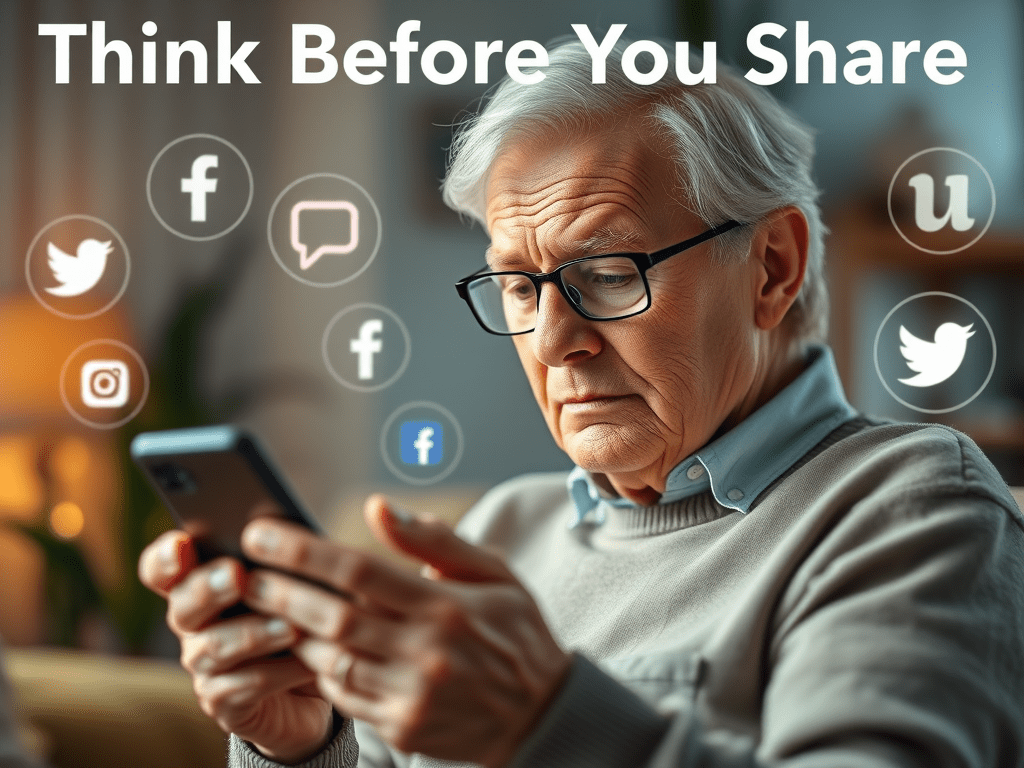
  • đŸ›Ąïž Think Before You Share: Social Media Safety for Seniors

    đŸ›Ąïž Think Before You Share: Social Media Safety for Seniors

    How to stay safe and protect your privacy online

    Social media is a wonderful way to stay connected with friends, children, and grandchildren. It helps us share photos, stay in the loop, and feel part of a community—even from the comfort of home. But while social media brings us closer together, it’s also important to be thoughtful about what we share. Why? Because not everyone online has good intentions.

    The good news is, you can still enjoy social media safely with just a few simple steps. In this post, we’ll show you what to watch out for, how scammers use your information, and how to adjust your privacy settings so only the people you trust can see your posts.

    đŸ€” What You Should Be Careful About Sharing

    When you post something online, it may seem like it’s just going to family and friends—but sometimes it reaches much farther. Scammers and strangers can see what you share if your settings aren’t private.

    Here are a few things to avoid posting publicly:

    • Your full birthdate
    • Your home address or phone number
    • Travel plans like “Leaving for a week!”
    • Personal routines (e.g., “I go to the same cafĂ© every morning”)
    • Security clues like your pet’s name, mother’s maiden name, or favorite color (common security questions)

    Even photos can reveal more than you think. For example, pictures taken in your home might show prescription bottles, mail, or IDs in the background. These details can be used to guess passwords or even steal your identity.

    🚹 How Scammers Use Shared Information

    Online scammers are sneaky. They gather small details over time from public posts to build a full profile of you. For example, if you share your birthday, dog’s name, and favorite sports team, a scammer might be able to answer your security questions and reset your account passwords.

    Some scammers also pretend to be someone you know. They might copy your profile photo and make a fake account using your name to trick others. Others watch for vacation posts to target empty homes.

    That’s why protecting your information isn’t about being secretive—it’s about being smart.

    🔧 How to Adjust Your Privacy Settings

    The easiest way to protect yourself is to change your social media settings so only friends can see your posts. Here’s how to do it on Facebook:

    1. Go to Settings & Privacy
    2. Select Privacy Checkup
    3. Choose “Who can see what you share?”
    4. Set your posts and personal information to “Friends Only”

    You can also:

    • Remove your birthday from public view
    • Limit who can send you friend requests
    • Use Facebook’s “View As” tool to see what others see on your profile

    Taking five minutes to do this can protect you from countless scams and unwanted attention.

    ✅ Safe Sharing Tips for Every Day

    Here are a few simple habits to keep in mind:

    • Only accept friend requests from people you know personally
    • Don’t click on suspicious links, even if they come from someone you know
    • Wait until after a trip to post about it
    • Use strong passwords and don’t reuse them across sites
    • Log out of accounts when using a shared device

    And most importantly, trust your gut. If something feels off, take a moment to double-check or ask a trusted friend or family member for help.

    🌟 Conclusion: Stay Connected and Stay Safe

    At Golden Guidance, we believe social media should feel safe, fun, and empowering—not stressful. You deserve to enjoy the benefits of technology without worrying about scams or strangers. By being careful with what you share and who sees it, you can stay in control and protect your peace of mind.

    Want more helpful tips like this? Follow us on Facebook and share this post with a loved one who could use a little guidance.

  • 🛑 How to Recognize Spam Emails, Phone Numbers & Links

    🛑 How to Recognize Spam Emails, Phone Numbers & Links

    Simple ways to stay safe and confident online

    In today’s world, technology connects us to friends, family, and helpful services—but it also brings unwanted spam. These messages often pretend to be from people or companies we trust and are designed to trick us into giving away personal information. The good news? You don’t need to be a tech expert to stay safe. By learning a few warning signs, you can confidently avoid scams and protect your privacy.

    ✉ Spotting Spam Emails

    Spam emails might look real at first, but there are usually clues that something isn’t right. Start by checking the sender’s email address—scammers often use addresses that look strange or don’t match the company’s real name. Watch for poor spelling, awkward wording, or urgent messages that say things like “Your account will be shut down!” or “Click here to claim your reward.” These messages are designed to scare or excite you into clicking without thinking. When in doubt, don’t open links or attachments, and never reply with personal information.

    📞 Recognizing Suspicious Calls and Texts

    Scam calls and texts are becoming more common. They may come from a number that looks local or even familiar. The caller might claim to be from your bank, Medicare, or a delivery company. If someone you don’t know asks for your Social Security number, bank details, or access to your computer—hang up right away. For texts, avoid clicking links unless you know exactly who sent them and why. When possible, let unknown numbers go to voicemail so you can review the message safely.

    🔗 How to Tell if a Link is Unsafe

    Links in spam emails or texts can lead to dangerous websites. These fake pages might look like the real thing but are designed to steal your passwords or install harmful software. Before clicking a link, hover your mouse over it (or press and hold on a phone) to preview the full address. If it looks unusual or doesn’t match the company’s website, it’s best not to click. You can also type the web address directly into your browser to be sure you’re going to the right place.

    💡 Trust Your Instincts—And Ask for Help

    If something feels “off” or seems too good to be true, it probably is. Spam and scam messages often use pressure or fear to get a quick response. Take your time. Read carefully. If you’re ever unsure, ask a family member or friend to take a look. It’s never a bother—it’s smart. Remember, it’s okay to delete, ignore, or hang up. Your safety and peace of mind come first. At Golden Guidance, we believe learning technology should feel calm and empowering. Stay connected with us for more simple, step-by-step advice to help you stay safe and confident in today’s digital world.

  • Join Us on Facebook for Simple Tech Tips & Support

    Join Us on Facebook for Simple Tech Tips & Support

    At Golden Guidance, we believe learning tech should feel calm and empowering—not overwhelming.

    Our Facebook page is a gentle, welcoming space where we share:

    • Easy tech tips
    • Online safety advice
    • Helpful apps
    • Supportive guidance for seniors

    Whether you’re just starting out or want to stay confident online, you’re not alone. Join a growing community of learners who value clarity, comfort, and connection.

    👉 Follow us here:  https://www.facebook.com/profile.php?id=61576997391992

    Let’s explore the digital world—together, one simple step at a time.

  • 🧠 Relax, Play, and Stay Sharp: Apps for Mental Stimulation and Entertainment

    🧠 Relax, Play, and Stay Sharp: Apps for Mental Stimulation and Entertainment

    Welcome back to Golden Guidance! As we get older, keeping our minds active becomes just as important as caring for our bodies—and the good news is, it doesn’t have to be boring or difficult. Today’s technology offers simple, enjoyable ways to keep your brain sharp, stay entertained, and bring a little fun to your day. Whether you enjoy word games, puzzles, or listening to a good story, there’s an app that’s perfect for you.

    Let’s explore some of the best brain-boosting apps for seniors that are both easy to use and fun to try.

    đŸ§© 1. Brain Games That Feel Like Play

    If you like a little mental challenge, brain-training apps can be a great way to keep your mind engaged. Apps like Lumosity, Elevate, and Peak offer quick daily exercises to help with memory, attention, and problem-solving.

    You don’t need any tech experience to get started—just download the app, choose your interests, and begin playing. Each game is designed to be short, simple, and enjoyable, like solving a fun puzzle or playing a memory game. You can use these apps for just 10–15 minutes a day and still see benefits.

    đŸ“± Available on: iPhone, iPad, Android

    🔗 Try Lumosity: www.lumosity.com

    ✏ 2. Puzzles and Word Games to Enjoy Anytime

    Word and puzzle games are classic brain boosters—and now they’re just a tap away on your tablet or phone. If you love crosswords, try Words with Friends, which lets you play with friends or the computer. Prefer number puzzles? Sudoku.com is a simple app that keeps your mind focused and challenged.

    For something relaxing, Jigsaw Puzzle apps offer beautiful images you can piece together at your own pace. These types of games help with problem-solving, attention to detail, and memory—plus, they’re just plain fun.

    đŸ“± Available on: iPhone, iPad, Android

    🔗 Try Words with Friends: wordswithfriends.com

    🎧 3. The Joy of Audiobooks and Podcasts

    Maybe you’d rather listen than play—and that’s a great choice, too. Listening to stories, interviews, or lessons is a wonderful way to stay mentally active and entertained. The Audible app has thousands of audiobooks to enjoy—from mysteries and memoirs to history and self-help.

    If you prefer free options, Libby connects to your local library and lets you borrow audiobooks with just a library card. Or try Spotify Podcasts for interesting conversations and shows on topics you love.

    đŸ“± Available on: iPhone, iPad, Android

    🔗 Try Libby: www.overdrive.com/apps/libby

    đŸŽ” 4. Soothing Sounds and Music for the Mind

    Music has a powerful effect on the brain. It can lift your mood, bring back memories, and even reduce stress. Apps like Spotify, Calm, or YouTube Music make it easy to create playlists of your favorite songs or calming background music.

    With Calm, you can also listen to relaxing sleep stories, guided meditations, or nature sounds—perfect for winding down at night or enjoying a peaceful moment during the day.

    đŸ“± Available on: iPhone, iPad, Android

    🔗 Try Calm: www.calm.com

    🌟 5. Simple Tools for Daily Joy and Wellness

    The beauty of these apps is that they fit easily into your day. You don’t need to set aside hours or follow complicated steps. Just a few minutes with a game, a good story, or some favorite music can lift your spirits and support your brain health.

    Try out one or two of the apps mentioned above and see what brings you joy. You might discover a new hobby—or reconnect with an old one. Technology doesn’t have to be intimidating—it can be your companion for learning, relaxing, and staying mentally active, all from the comfort of home.

    Thank you for visiting Golden Guidance!

    Want more simple tech tips for seniors? Follow us here or sign up for our weekly newsletter—delivered with clarity, care, and no jargon.